The Customer Portal provides and convenient and secure way to pay your invoices.
All of your invoices can be viewed in the Invoices tab. The window will open on the Balance Due tab, these are the invoices yet to be paid. Sort by any of the column headers or use the Search function at the top of the page to find the invoice of interest.
1. Click the invoice of interest and select "View" or "Pay Invoice". Clicking "View" will provide you with access to a PDF copy of the original invoice.
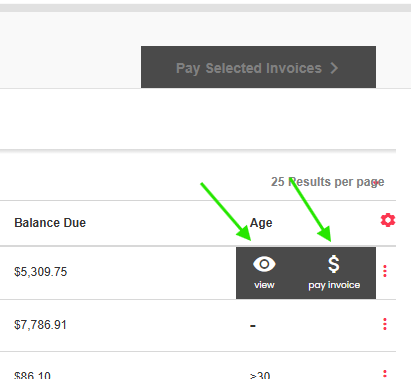
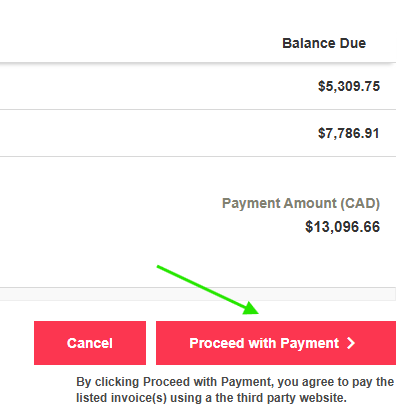
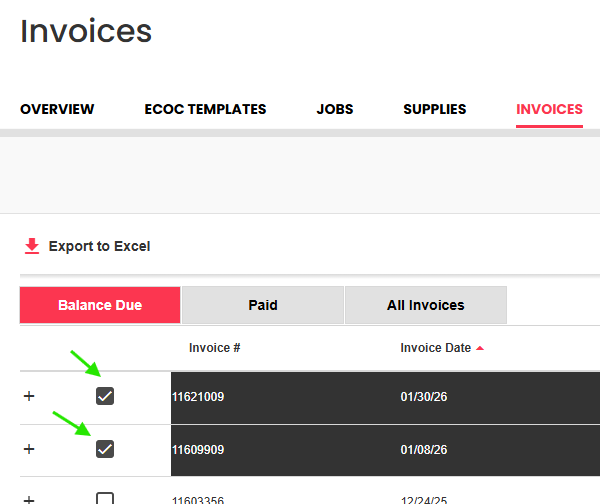
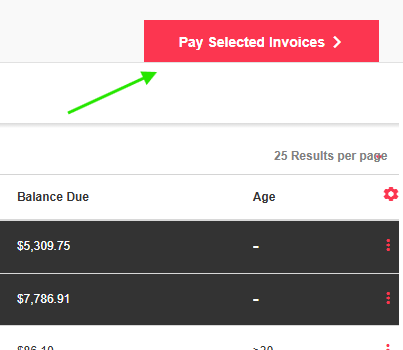
2. Select one or multiple invoices using the check boxes to the left. If you are paying a single invoice you can either use the inline menu and click the "Pay Invoice" icon, or if you have selected multiple invoices use the red "Pay Invoices" button in the upper right hand section of the page. This will take you to a payment summary page, which will show you the total amount to be paid.
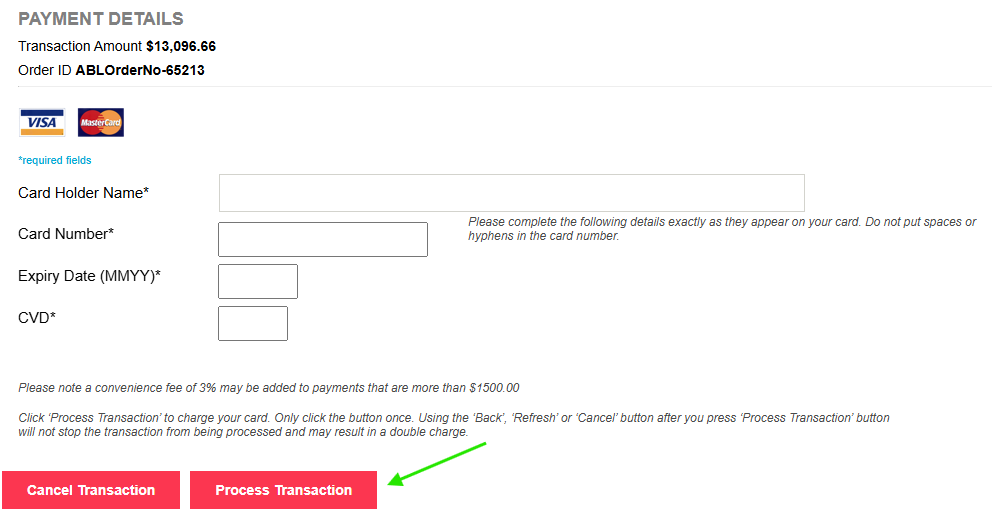
3. Click "Proceed with Payment" and enter payment details. Once you have entered your details click " Process transaction" to finish your transaction.