
Yes, certainly!
To reactivate a canceled eCOC, simply follow these steps:
- Find the canceled submission that you would like to reactivate in the JOBS section, under the 'Draft & Submitted' tab.
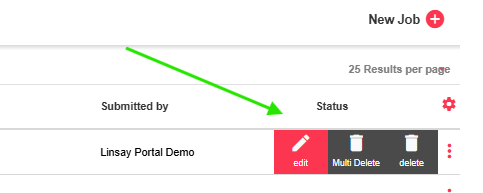
- Click on the submission to bring up the in-line menu. Select “Edit”.
- The “Reason or Comment” window will appear. The reason entered will display in the eCOC Change Log section in the eCOC Submission Details or Summary (not on the report). This is optional, you are able to leave the field blank.
- Select “Proceed”.
- You will be directed to step 1 of the submission process. When updates are complete, navigate to step 5 and click “Submit”. The eCOC status will update to Submitted.
Not done with your changes? Click the “Save & Close” button and the submission status will update to Editing. Go back when you know what else needs to be changed. When updates are complete, navigate to step 5 and click “Submit”. The eCOC status will update to Submitted.
Some Useful Tips!
To allow teamwork and collaboration, we did not set any restrictions on who can cancel or reactivate an eCOC job. As long as the users have access to the same company and eCOC functions, they will be able to work on a submission together.
After a canceled eCOC is reactivated, the submission details in the Jobs screen will update accordingly.