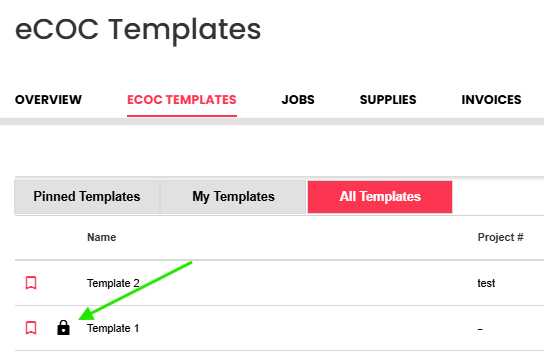
Locking a template removes the ability for others to delete or edit the template, so the creator of the template can be sure that there has not been any unwanted changes. If you created the locked template, you can still edit the template and other users can still use it to create eCOCs and supply orders.
How To Lock a Template:
- Go to the template you want to lock/unlock and click the row to open the inline menu.
- Select the "Edit" icon, this will take you to the step 1/Details page.
- Click the "Lock Template" icon on the far right of the screen. Only the creator of the template may do this.
- Click the "Unlock Template" icon to unlock the template. Only the creator of the template may do this.
Creating a Locked Template from scratch
- Go to the ECOC TEMPLATES section and click "New Template" on the right of the screen.
- You will be on the step 1/Details page. click the "Lock Template" icon on the right side of the details page.
- Finish creating your template by following the instructions in the article "How To Create an eCOC Template".
Lock Template icon: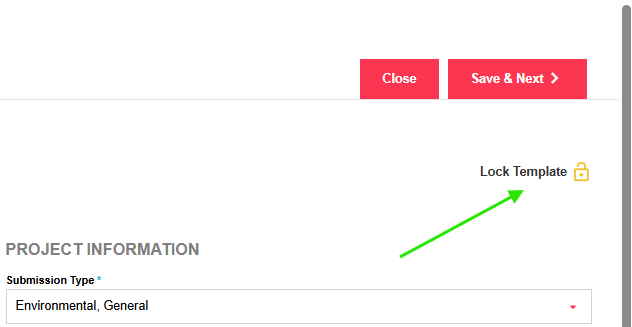
A locked template will look like this: