As the Administrator you might want to deactivate a user all together if the user is no longer with the company so you can prevent them from accessing sensitive information. You might also want to reactivate an inactive user to give them access to the Portal.
How to Deactivate a User
- On the top right side of the Customer Portal header click the red drop down arrow and then select Manage Access, a list of all your users will appear on the next page.
- Hover over the desired user and a pop up will appear showing the Deactivate icon, click the icon. This will remove the user’s access to the account.
How To Reactivate a User
- On the top right side of the Customer Portal header click the red drop down arrow and then select Manage Access, a list of all your users will appear on the next page.
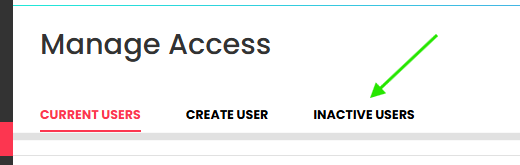
- Click the Inactive Users tab at the top of the page. Hover over the desired user and a pop up will appear showing the Reactivate icon, click the icon.